How do I add notes and highlights to my Portal 2.0 books?
How to add highlights:
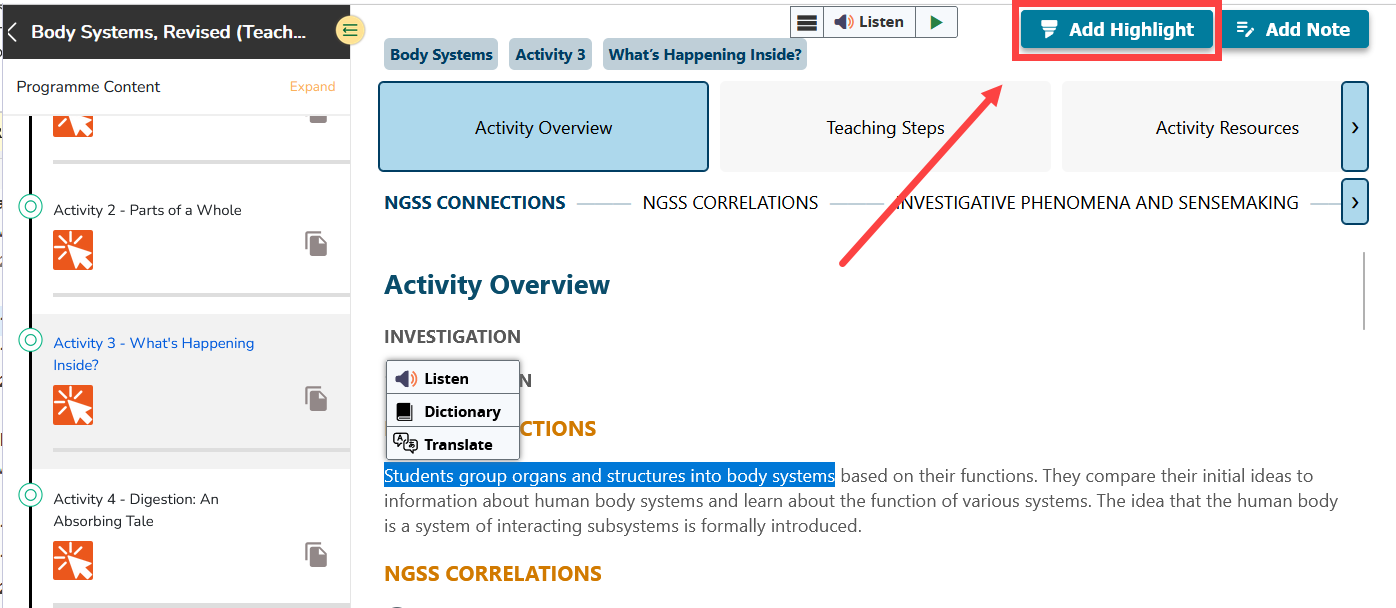
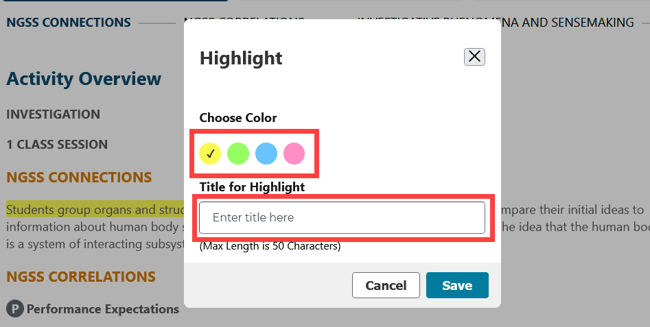
Highlight text you wish to highlight. Then, the "Add Highlight" button will appear in the top right corner of the page. Click the button, choose the desired color, enter a title if desired, and click "Save".
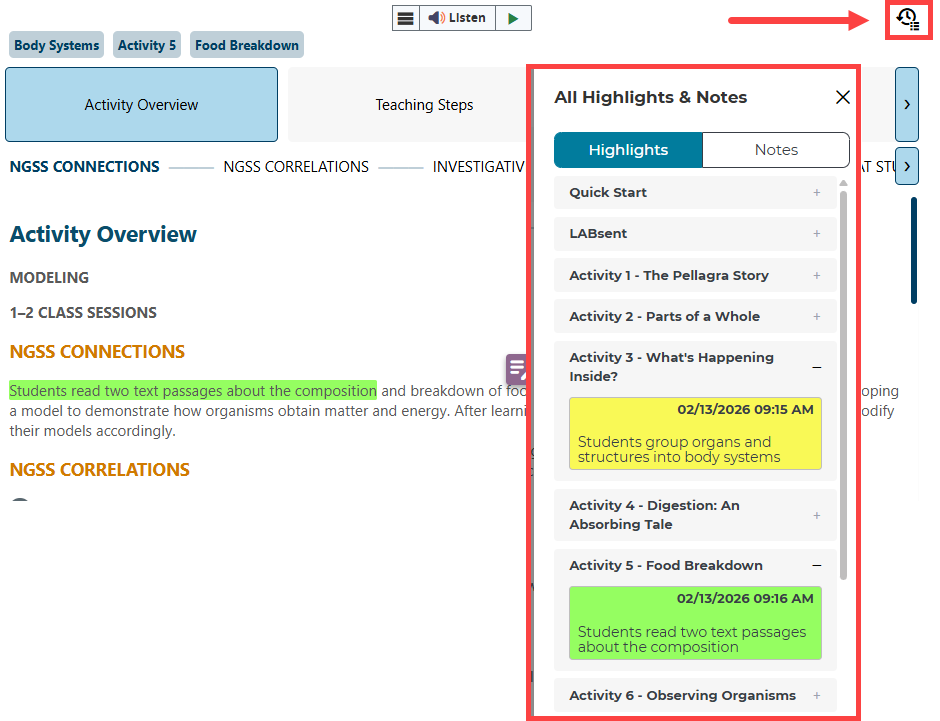
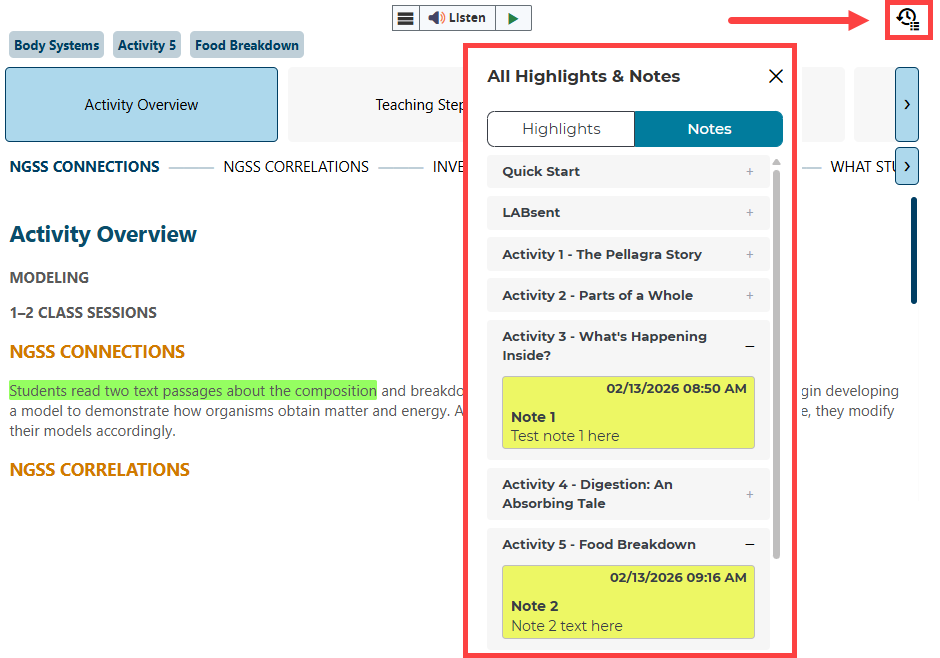
View all highlights by clicking the history icon in the top right corner. Expand/collapse each activity to view highlights.
How to add notes:
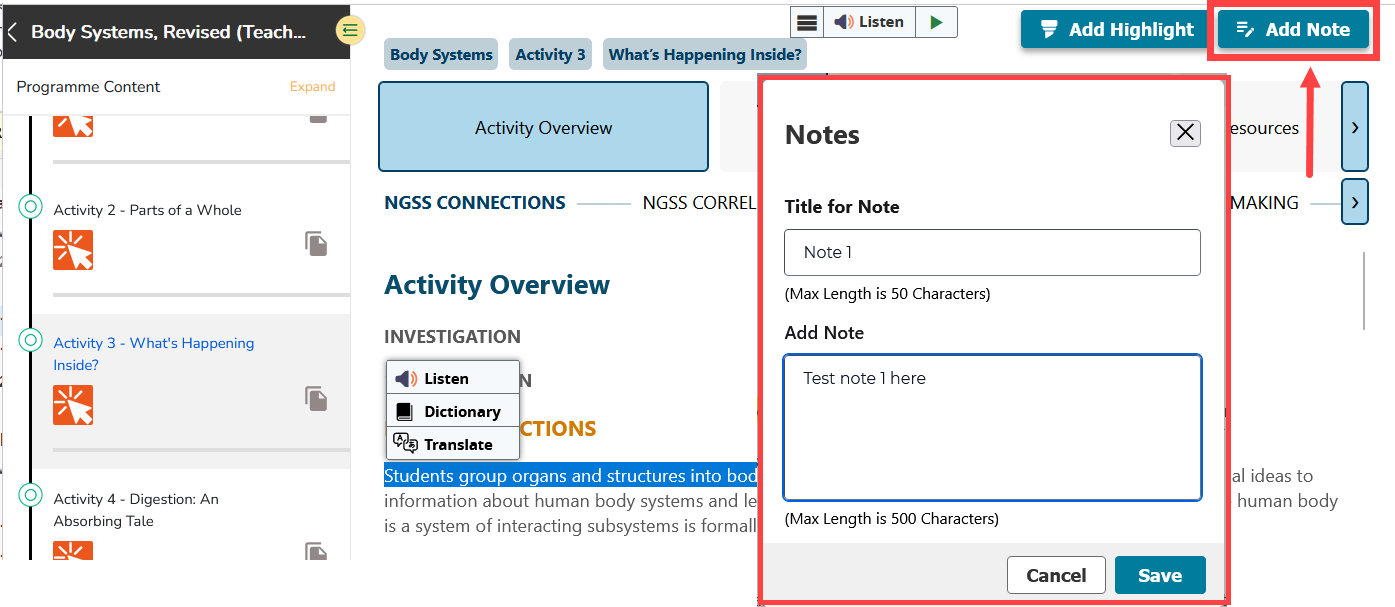
Highlight the text for which you'd like to add a note. Then, the "Add Note" button will appear in the top right corner of the page. Click the button, enter in a title and the text of the note, and click "Save".
View all notes by clicking the history icon in the top right corner. Expand/collapse each activity to view notes.

.png?width=20&height=20&name=Icon%20(Stroke).png)

.png?width=20&height=20&name=Type=Outline%20(3).png)
.png?width=20&height=20&name=Type=Outline%20(2).png)