CUSTOM ASSIGNMENTS
Teachers can now access an item bank to build customized assignments that students can complete online in the Lab-Aids Math Portal. This resource will guide you through how to build, assign, and grade these custom assignments.
Building Custom Assignments
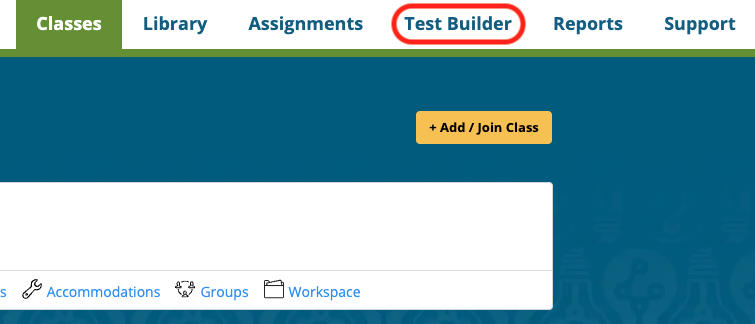
1) Click on the Test Builder tab from the menu at the top.
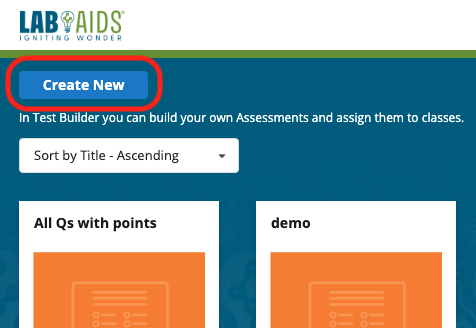
2) Click Create New to create a new assignment from the provided item bank.
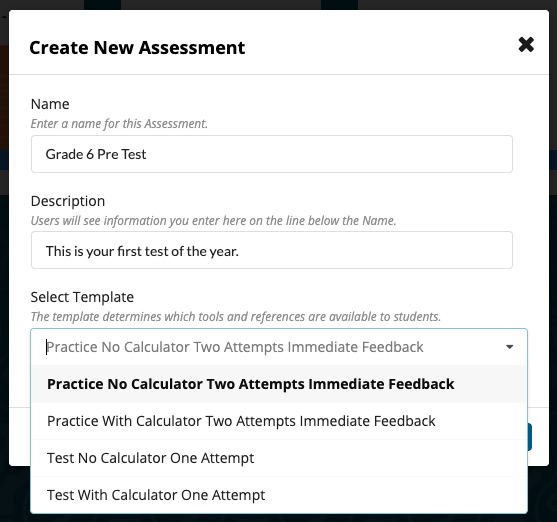
3) Insert a
Name and
Description (optional) and choose from the following 4 templates:
- Practice No Calculator Two Attempts Immediate Feedback – Students cannot access a calculator from the tool bar, students can make two attempts and then receive the answer.*
- Practice With Calculator Two Attempts Immediate Feedback - Students can access a calculator from the tool bar, students can make two attempts and then receive the answer.*
- Test No Calculator One Attempt - Students cannot access a calculator from the tool bar. Students can only attempt each question once and do not receive immediate feedback.
- Test With Calculator One Attempt - Students can access a calculator from the tool bar. Students can only attempt each question once and do not receive immediate feedback.
*Note: Students only receive answers for auto graded items.
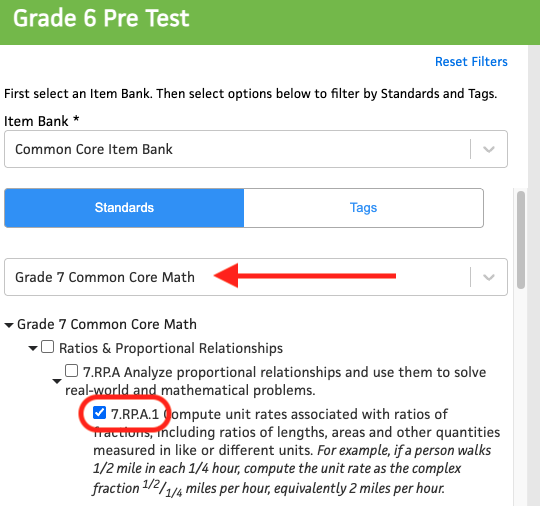
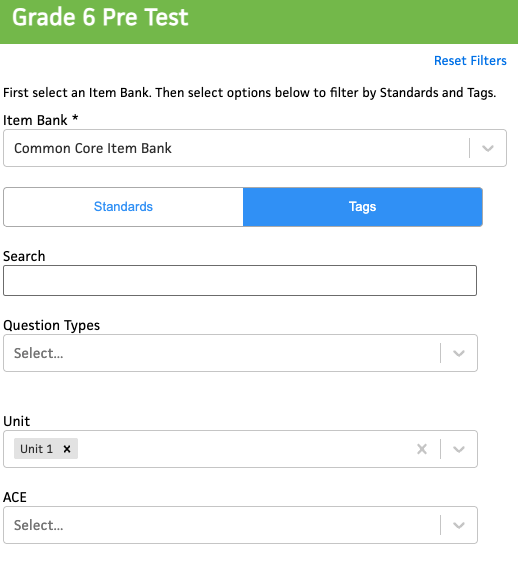
4) After the assignment is created, now it’s time to add items to the new assignment. Click on the assignment, then choose an item bank from the drop-down menu.
5) If the item bank is aligned to standards, you may choose an alignment from the drop-down menu. When you click on individual standards, you will view any associated items.
Note: You must select the individual standards, not the category they belong to.
6) You can also view items by various tags. Click on the Tag tab, then select a tag within a category (Question Type, Unit, Grade, Scoring Method, etc.). Note that when selecting multiple tags within a given category, there is an implied AND logic, instead of OR. For example, in the Unit category and choosing both Unit 1 and Unit 2, you will be shown items that are tagged with both Unit 1 and Unit 2 (and not either Unit 1 or Unit 2).
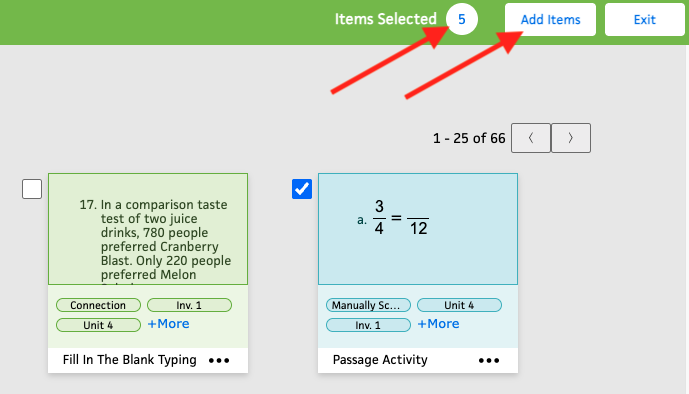
7) Once you find items you want to add to this new assignment, click on the checkbox next to each item. You can adjust the filtering of items by tags or standards to continue searching for needed items. Once you have selected all your items (the total quantity of items will appear in the top right corner), click on Add Items.
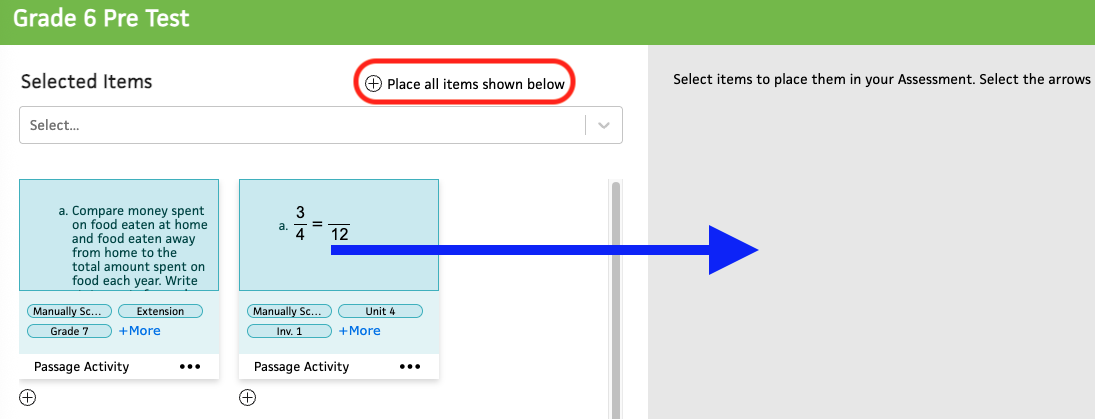
8) To add these items to the assignment, there are two options:
- Drag and drop each item from the left to the right side of your screen.
- Click on the Place all items shown below button.
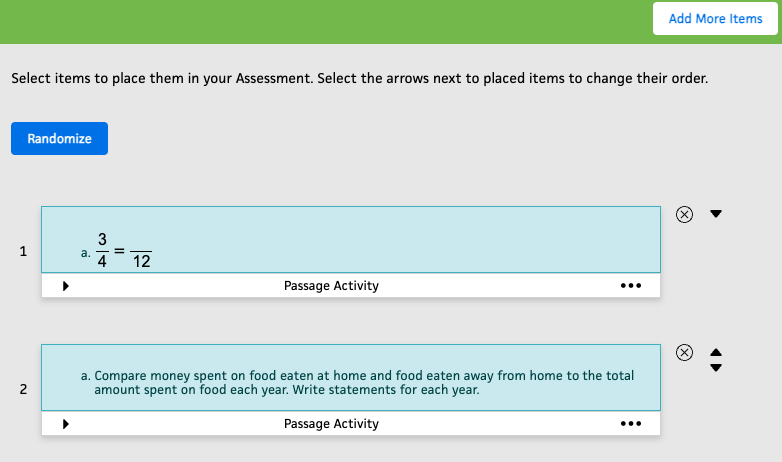
9) Once items are added, you have 3 options to fine tune the items in the assignment:
- Drag and drop each item up or down to change the item order.
- Click the Randomize button to randomize the order of the items.
- You can click the “x” button to remove an item if necessary.
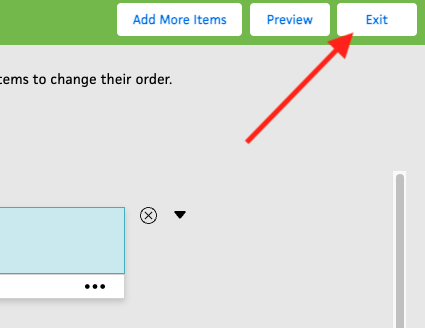
10) Once complete, click Exit and your assignment is saved.
Assigning Custom Assignments
After you have built a custom assignment, follow these instructions to assign it to your students:
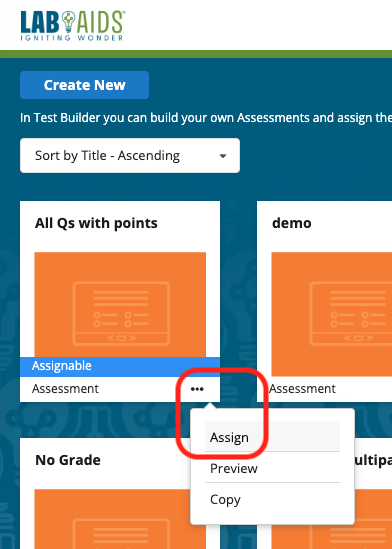
1) Click on Test Builder from the top menu of your account.
2) Click the three dots icon (kebob), then click Assign.
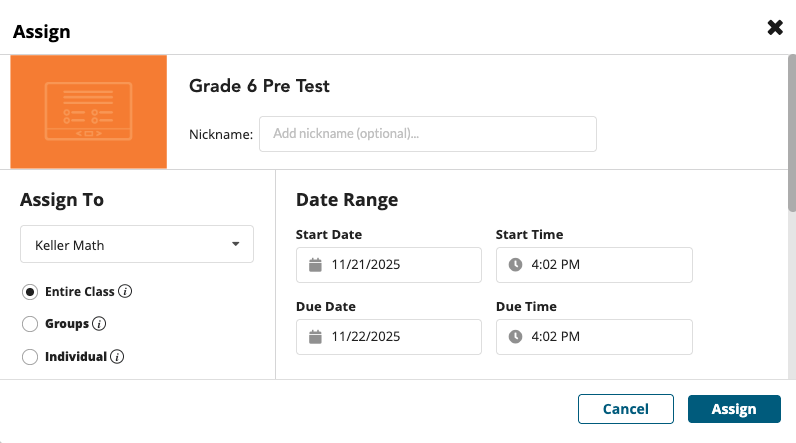
3) Here, you can determine the settings for this particular assignment, such as:
- Nickname / title (optional)
- Start and due times
- Which class, group, or individual students receive the assignment
- Reporting and grading settings
- Optional student instructions (located at the bottom).
4) When all settings are chosen, click Assign. Students will be notified of the assignment accordingly.
Grading Assignments
To grade an assignments completed by your students, please follow the instructions found here.

.png?width=20&height=20&name=Icon%20(Stroke).png)

.png?width=20&height=20&name=Type=Outline%20(3).png)
.png?width=20&height=20&name=Type=Outline%20(2).png)