How do I export a test and import into Schoology/Canvas?
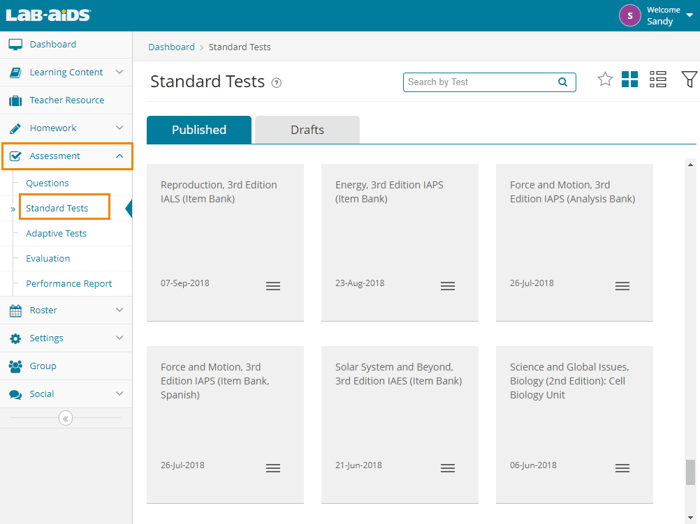
1. After logging into your teacher account, select Assessment > Standard Tests from the left-hand side menu. You will then be presented with a list of all the assessments you have access to, both pre-made tests and ones that you have created yourself. Select the test you wish to export.
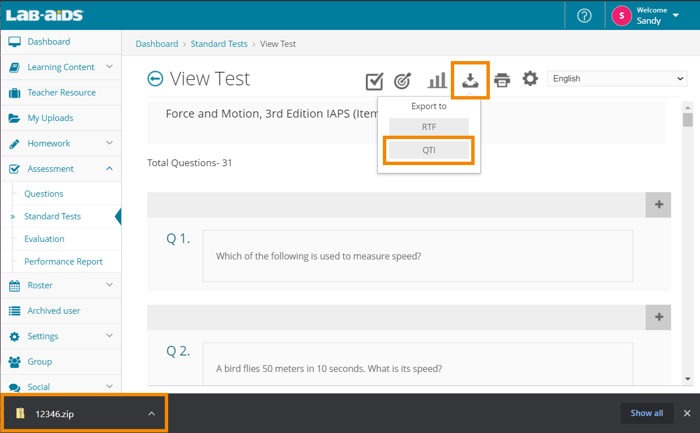
2. To export the assessment, click the downward facing arrow icon on the top right and select "QTI" format. QTI is the standard format for importing/exporting assessments between publishers and LMSs like Schoology and Canvas. Lab-Aids exports in QTI 2.1 format.
3. To import the assessment into Schoology/Canvas, please refer to your LMS's documentation. We have provided basic LMS documentation below, but understand that we are not responsible for Canvas/Schoology instructional information.
Canvas: Import into an item bank

.png?width=20&height=20&name=Icon%20(Stroke).png)

.png?width=20&height=20&name=Type=Outline%20(3).png)
.png?width=20&height=20&name=Type=Outline%20(2).png)